Table of Contents
Setting up a Development Environment
The following instructions describe how to set up a development environment for programming a CFHEADER module using Visual Studio and C#.
Installation
A CFHEADER development environment requires the .NET 8 SDK or later. If using Visual Studio, please install Visual Studio 2022 or later.
Please perform the follow procedure precisely in the order shown:
- Download and install Visual Studio. Be sure to select the .NET desktop development workload. If you plan to also create ASP.NET applications, also install the ASP.NET and web development workload.
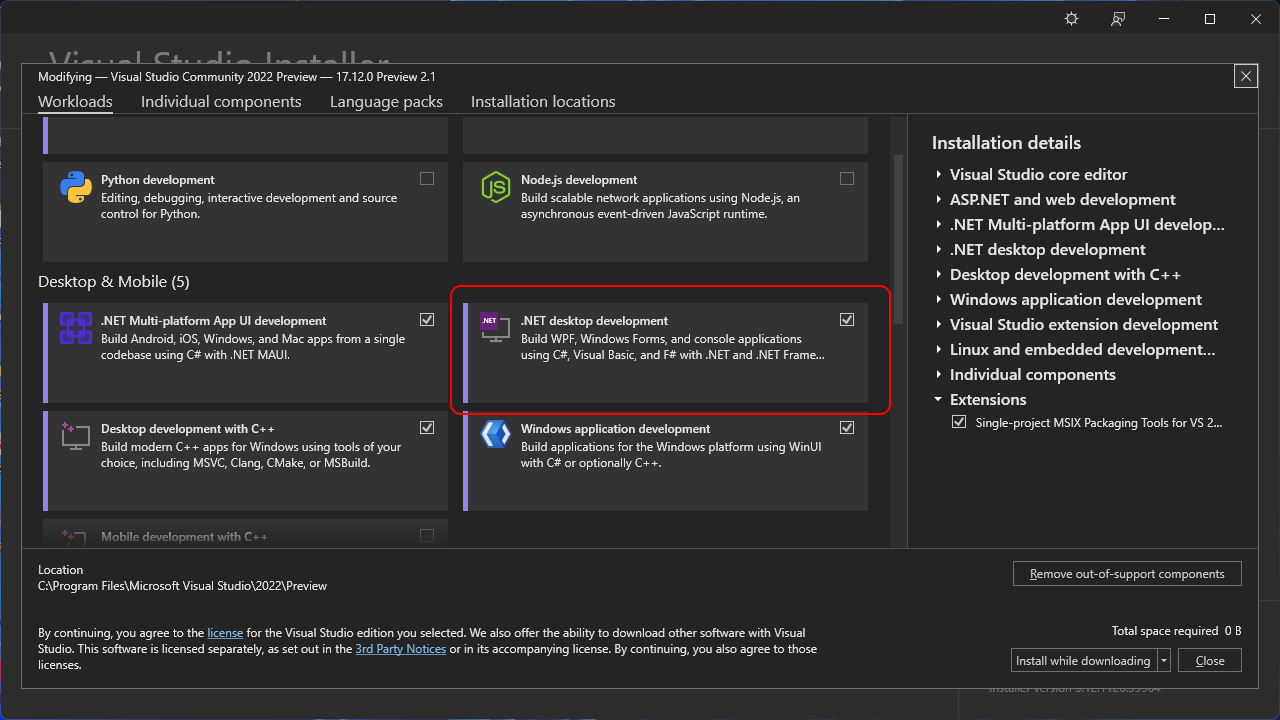
- Open a command prompt, and run the following command to install the Nuget source for downloading the necessary CFNET libraries and templates.
dotnet nuget add source https://nuget.comfiletech.com/index.json --name "COMFILE Technology"
- Run the following command to install the Visual Studio templates.
dotnet new install ComfileTech.Templates

Example Projects
After installing the Visual Studio templates, by following the instructions above, you can immediately open a working demo project using the Visual Studio New Project Wizard by simply searching for “CFHEADER”, and selecting on of the demo project templates.

API Documentation
Browse the ComfileTech.Cfnet.Cfheader API documentation to become familiar with the classes, methods and properties for programming the CFHEADER and automating the connected IO modules.
Updating the Templates
Periodically, COMFILE Technology may update the Visual Studio templates with new templates and other improvements. To obtain the latest templates, simply run the following command from a terminal:
dotnet new install ComfileTech.Templates
Debugging
If you're using Visual Studio 2022 or 2026, install the Remote .NET Debugger extension.
If you're using Visual Studio Code, install the Remote .NET Debug Configurator extension.
Uninstallation
To uninstall the Visual Studio templates, run the following in a terminal.
dotnet new uninstall ComfileTech.Templates
To remove the Nuget source, run the following in a terminal.
dotnet nuget remove source "COMFILE Technology"