
Table of Contents
ComfileHMI connection example
Let's take a look at how the connection between ComfileHMI and Modular FADUINO is made specifically through an example.
First, let's start from the source code that has nothing.
void setup()
{
}

void loop()
{
}
Please add the library in this state.And A global array (i.e., link array) is required for linking. Information can be exchanged between FADUINO and ComfileHMI through this link array.
To declare it as a global array, you must declare the array outside of setup or loop.
#include "CFMEGA.h"
#include "cfSimpleModbusRtu1.h"

CFNET cfnet;

uint16_t Lword[99]; // Link array storing 16-bit word values
uint8_t Lbit[99]; // Link array storing 1-bit values

void setup()
{
}

void loop()
{
}
The groundwork is done. Now let's start MODBUS. All we have to do is insert the startModbusServer function into setup.
#include "CFMEGA.h"
#include "cfSimpleModbusRtu1.h"

CFNET cfnet;

uint16_t Lword[99];
uint8_t Lbit[99];

void setup()
{
startModbusServer(1, Lword, Lbit); // uartCh, ModbusSlaveAdr, WordArea, BitArea
}

void loop()
{
}
This concludes the coding in Arduino IDE. Now let's move on to Comfile Studio.
First: Let's display numbers and increasing values
Display only one number widget in ComfileHMI and set the address to 2.
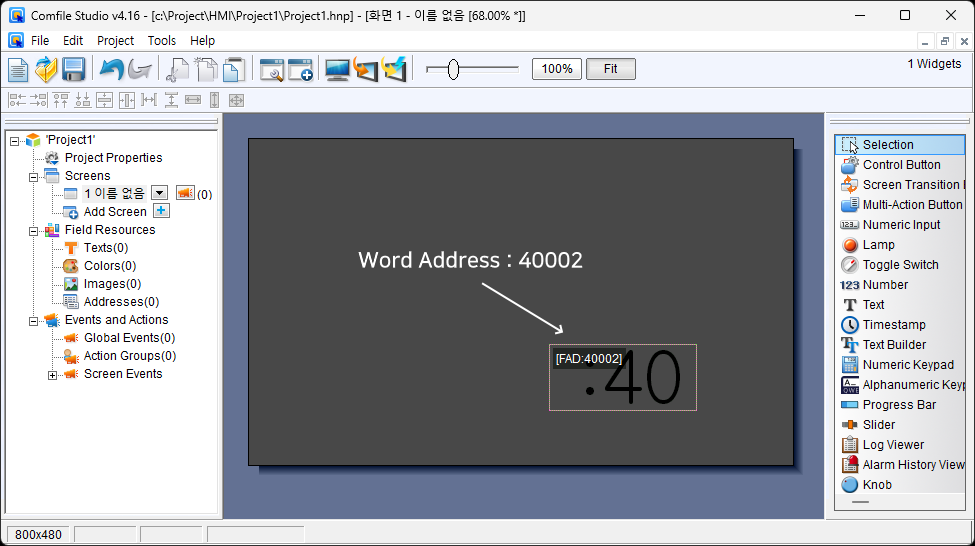
(Explanation) Modbus' address system is described like a function code. The address 40002 means address 2 of function 3 (meaning word space).
And if you modify the source as follows, the value in the variable called incvalue will continue to increase, and the value will be stored in the link array Lword.
#include "CFMEGA.h"
#include "cfSimpleModbusRtu1.h"

CFNET cfnet;

uint16_t incvalue;
uint16_t Lword[99];

uint8_t Lbit[99];

void setup()
{
startModbusServer(1, Lword, Lbit); // uartCh, ModbusSlaveAdr, WordArea, BitArea
}

void loop() {
Lword[2] = incvalue++;
}
When you run it, a continuously increasing number will be displayed on the ComfileHMI screen.
<html> <center> <iframe width=“560” height=“315” src=“https://www.youtube.com/embed/818PpehZrFU?si=NMtdWp0TV-zuFgHe” title=“YouTube video player” frameborder=“0” allow=“accelerometer; autoplay; clipboard-write; encrypted-media; gyroscope; picture-in-picture; web-share” referrerpolicy=“strict-origin-when-cross-origin” allowfullscreen></iframe> </center> </html>
If you've succeeded so far, you've understood and solved many things. Congratulations.
If the above example doesn't work properly, please check if there's anything wrong in the process listed below.
- Install Comfile Studio and create the first project - Connect the PC and ComfileHMI, and successfully transfer the project - If you are a first-time user, install Windows Mobile Device Center and check the operation - Install Arduino IDE, compile, and successfully upload. - Wiring between ComfileHMI and FADUINO
Second: Implementing button operation
In the previous situation, only the value was written to the LWORD link array in FADUINO, but ComfileHMI automatically took the value and displayed it on the screen.
This time, we will do the opposite, press the button on ComfileHMI and output the changed status to the port on FADUINO.
I configured it using the control button widget and the lamp widget.
Set the control button property to On and Off with <bit address>
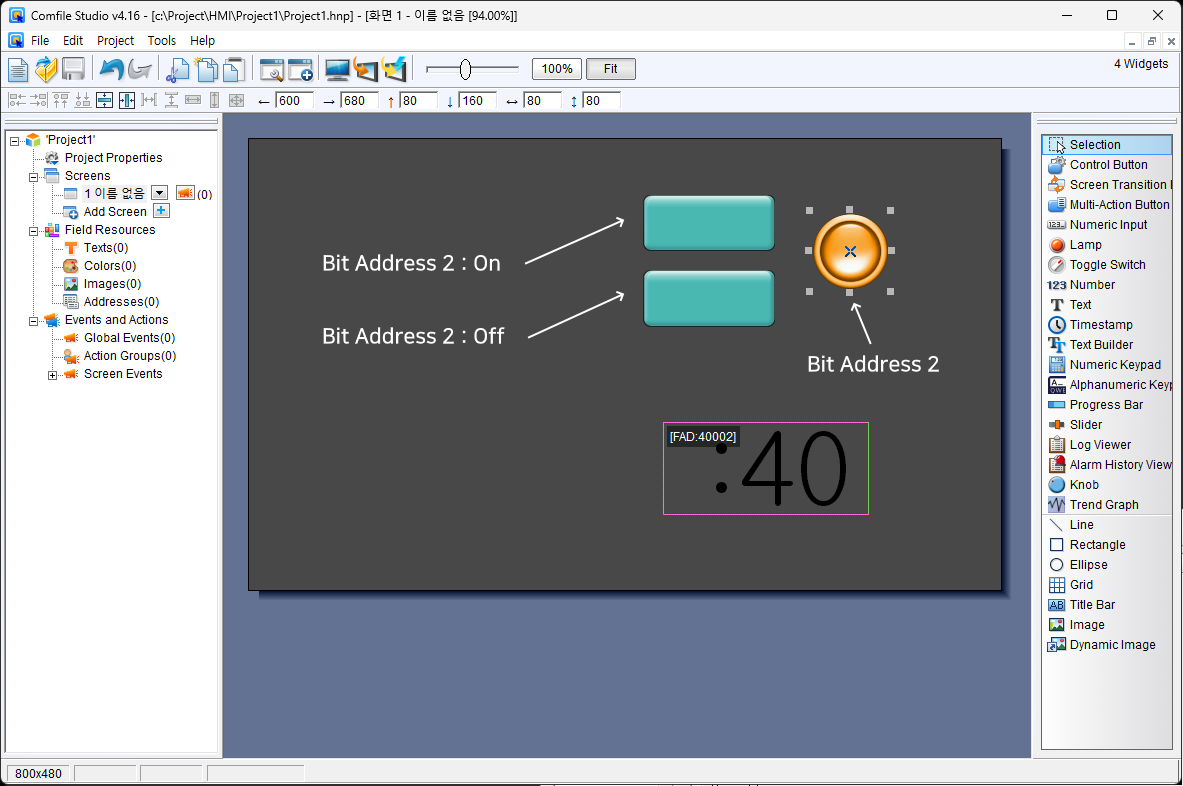
#include "CFMEGA.h"
#include "cfSimpleModbusRtu.h"

CFNET cfnet;

uint16_t incvalue;
uint16_t Lword[99];

uint8_t Lbit[99];

void setup()
{
pinMode(13,1);
startModbusServer(2, 1, Lword, Lbit); // uartCh, ModbusSlaveAdr, WordArea, BitArea
}

u16 ltemp;
u8 tempv; void loop() {
Lword[2] = incvalue++;
if (Lbit[3] == 1) {
cfnet.digitalWrite(0,15,1); } // reads the button widget information and actually turns the port On/Off.
else {
cfnet.digitalWrite(0,15,0); }
}
<html><center> <iframe width=“560” height=“315” src=“https://www.youtube.com/embed/TgElISj9TAg?si=efGX02x5rUm-zpuV” title=“YouTube video player” frameborder=“0” allow=“accelerometer; autoplay; clipboard-write; encrypted-media; gyroscope; picture-in-picture; web-share” referrerpolicy=“ strict-origin-when-cross-origin” allowfullscreen></iframe> </center></html> Modular FADUINO