
Table of Contents
Configure a Program to Start Automatically
Graphical programs can be configured to start automatically when the desktop session starts.
<note>
These methods start programs only after the graphical desktop session has started. To start a background service at boot, regardless of whether a user logs in, use a systemd service instead.
</note>
Wayland and Labwc
Since the release of Bookworm, the ComfilePi OS utilizes Wayland and the labwc Wayland compositor. Startup commands are placed in a Labwc autostart file.
The system-wide file is:
/etc/xdg/labwc/autostart
To configure autostart for only the current user, use:
$HOME/.config/labwc/autostart
If the user-specific file exists, Labwc uses it instead of the system-wide file. Therefore, when creating a user-specific file, copy the existing system-wide file first so the standard desktop startup commands are retained:
mkdir -p "$HOME/.config/labwc"
cp -n /etc/xdg/labwc/autostart "$HOME/.config/labwc/autostart"
Add the command used to start the program. For example:
/home/pi/my-program &
Use absolute paths whenever possible because the environment used during desktop startup may differ from the environment in an interactive terminal.
The & character runs the command in the background. Without it, the autostart script waits for the program to exit before executing the next line. Long-running graphical programs should therefore normally be followed by &.
For example:
/home/pi/program-one &
/home/pi/program-two &
Lines beginning with # are comments and are not executed.
Hide the Standard Desktop
The standard ComfilePi desktop is provided primarily by pcmanfm-pi and wf-panel-pi.
To prevent the desktop background, desktop icons, and panel from appearing, comment out their lines:
#/usr/bin/lwrespawn /usr/bin/pcmanfm-pi &
#/usr/bin/lwrespawn /usr/bin/wf-panel-pi &
Other entries, such as kanshi, may be required for display resolution, orientation, or scaling and should not be removed unless they are known to be unnecessary.
Changes take effect the next time the Labwc desktop session starts. Log out and log back in, or reboot the ComfilePi.
X11 and LXDE
On older ComfilePi OS images that use the X11 desktop with LXDE, startup commands are placed in an LXSession autostart file.
The system-wide file is:
/etc/xdg/lxsession/LXDE-pi/autostart
To configure autostart for only the current user, use:
$HOME/.config/lxsession/LXDE-pi/autostart
If the user-specific file exists, LXSession uses it instead of the system-wide file. Therefore, copy the system-wide file before making user-specific changes so the standard desktop startup commands are retained:
mkdir -p "$HOME/.config/lxsession/LXDE-pi"
cp -n /etc/xdg/lxsession/LXDE-pi/autostart "$HOME/.config/lxsession/LXDE-pi/autostart"
The LXSession autostart file is not a shell script. Enter one command per line.
For example, to start the Mono program /home/pi/HelloWorld.exe, add:
@mono /home/pi/HelloWorld.exe
The @ character tells LXSession to restart the program if it exits unexpectedly. It does not have the same meaning as the shell's & character.
Changes take effect the next time the LXDE desktop session starts. Log out and log back in, or reboot the ComfilePi.
Configure a non-X Program to Auto-Start (e.g. Qt EGLFS)
Most embedded applications do not run in a desktop environment. This procedure will describe how to configure the ComfilePi to boot to a console instead of a desktop environment, and auto-start a program as a service.
Configure the ComfilePi to Boot to a Console
- From a console/terminal, execute the command
sudo raspi-config. - Select 3 Boot Options –> B1 Desktop / CLI –> B1 Console.
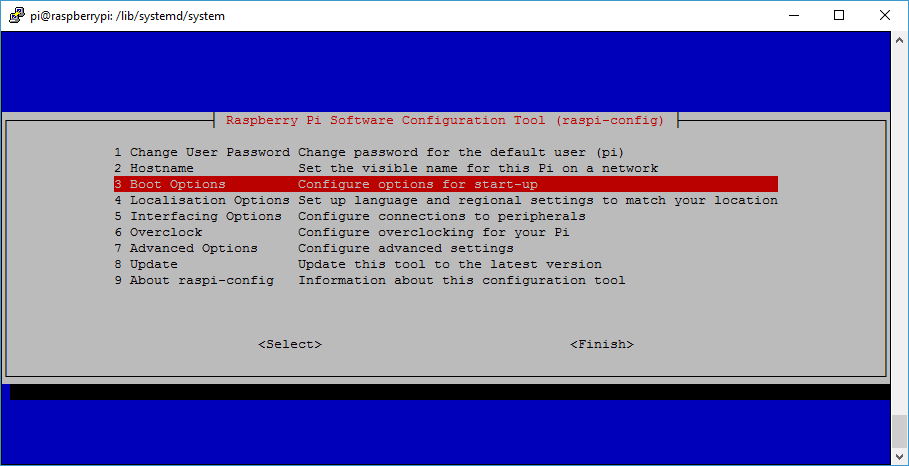
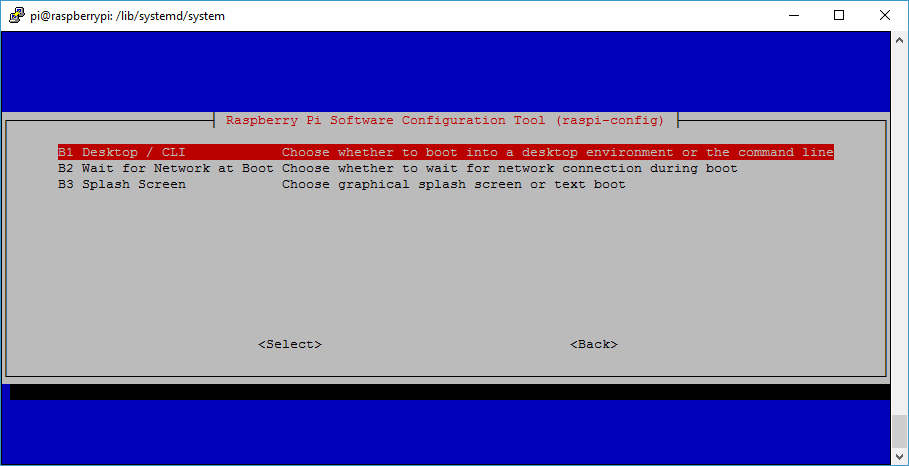
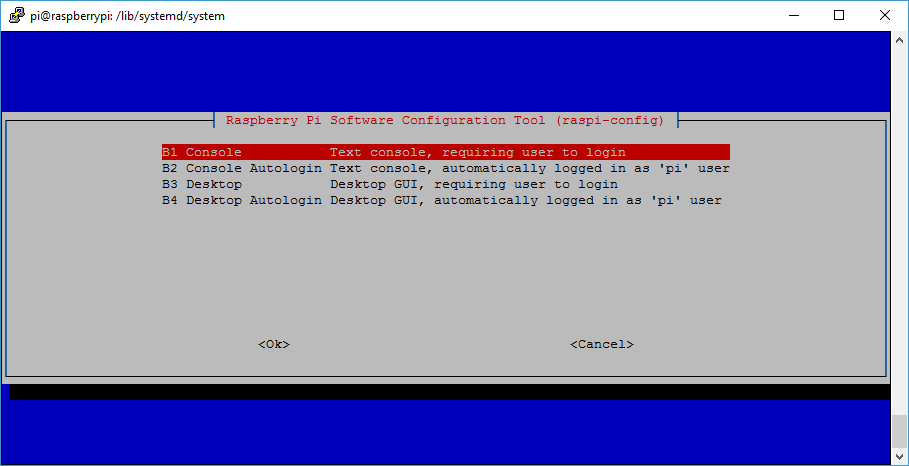
- Then select Finish to exit, and “Yes” to reboot.
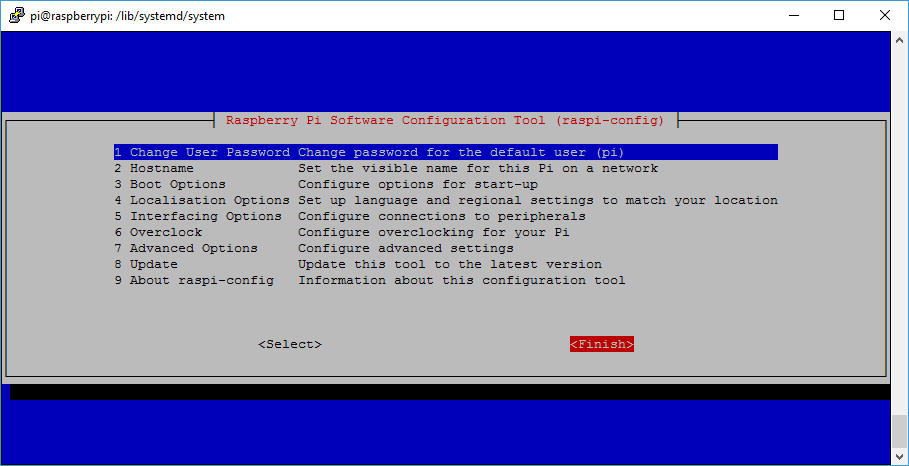
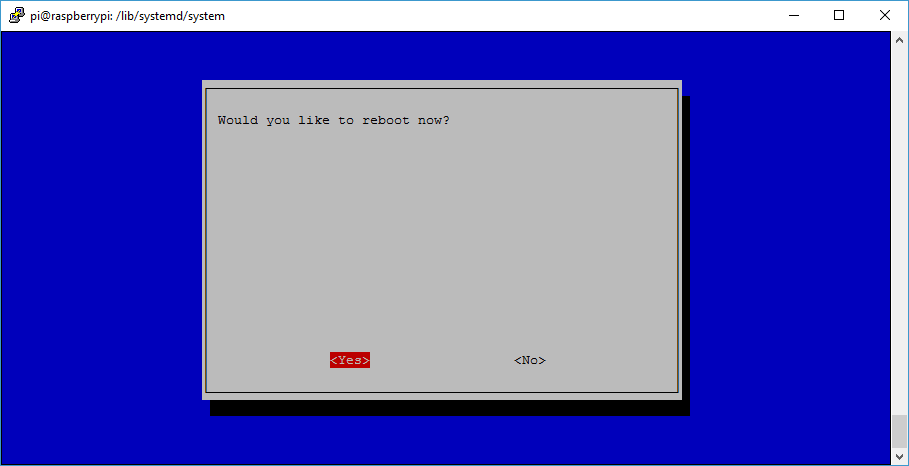
After rebooting, instead of booting to the desktop environment, it will boot to a console waiting for user to login.
Register a Program to Auto-Start
- Create a {program_name}.service file in your favorite text editor, and copy it to
/etc/systemd/system/. For this demonstration we will create a file named dashboard.service that will run the dashboard example program at/opt/Qt5.8/examples/quickcontrols/extras/dashboard. - Edit the file with the following contents
[Unit]
Description=Dashboard example program

[Service]
ExecStart=/opt/Qt5.8/examples/quickcontrols/extras/dashboard/dashboard
Restart=always

[Install]
WantedBy=multi-user.target
*
Descriptionis just a textual description of the service.
*ExecStartis the path to the executable to run.
*Restart=alwayswill cause the program to respawn if/when its exited.
*WantedByestablishes where in the execution pipeline to this program should execute.
* See the systemd official documentation for more information. - Register the service by executing
sudo systemctl enable dashboard.service, and the next time the ComfilePi boots, it will run the dashboard program automatically. Executesudo systemctl start dashboard.serviceto run the service immediately.
Reference
sudo systemctl enable dashboard.service- Register the service. The program will auto-start on the next boot.sudo systemctl disable dashboard.service- Unregister the service. The program will no longer auto-start.sudo systemctl start dashboard.service- Start the program immediately.sudo systemctl stop dashboard.service- Stop the program immediately. It will not automatically respawn after executing this command even with theRestart=alwaysoption.
Environment Variables for Qt EGLFS Programs
Qt programs running with the EGLFS backend need to declare a few environment variables to work properly. They are currently set in /etc/profile.d/qt5.8-environment.sh, so if running the program under a user's profile, nothing needs to be done. However, systemd will not be running under a normal user's profile, so the environment variables must be set explicitly in the .service file as illustrated below.
[Service]
Environment="QT_QPA_EGLFS_HIDECURSOR=1"
Environment="QT_QPA_EGLFS_DISABLE_INPUT=1"
Environment="QT_QPA_GENERIC_PLUGINS=evdevmouse:abs"
Environment="QT_QPA_EGLFS_PHYSICAL_WIDTH=154"
Environment="QT_QPA_EGLFS_PHYSICAL_HEIGHT=86"
Environment="QT_QPA_EGLFS_WIDTH=800"
Environment="QT_QPA_EGLFS_HEIGHT=480"
ExecStart=/opt/Qt5.8/examples/quickcontrols/extras/dashboard/dashboard